
Speech and voice
Super Parrot reads words, examples and questions with the device's text-to-speech, and can listen to your answers through the microphone — all the way to reviewing entirely by voice, without touching the screen.
Listening
Wherever a 🔈 button appears — a vocabulary word, an example in a note, a review card — it reads the text, each word in its own language and with its country's accent. This button is always free. Speed and accent are set in Pronunciation.
Automatic speech
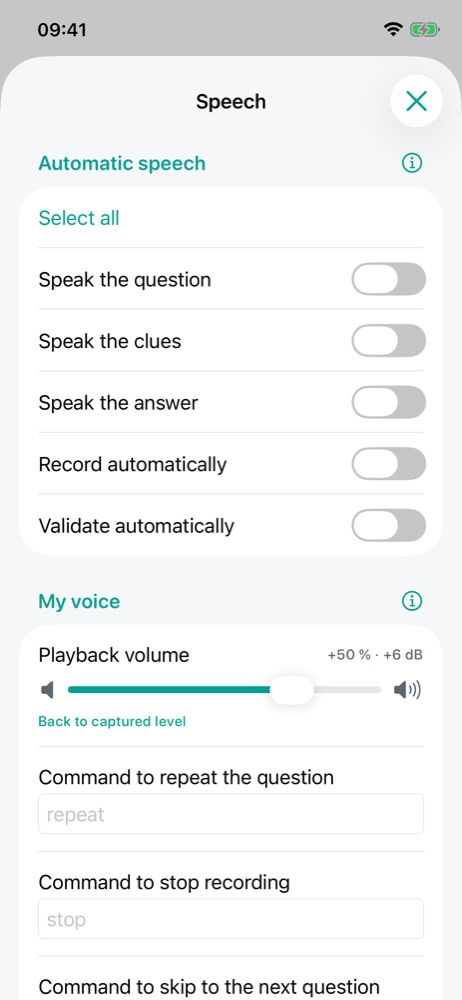
The Speech setting opens from the … menu of the home screen (Learning section) or of the review. The Select all / Deselect all button ticks or unticks every option at once.
| Option | Effect |
|---|---|
| Speak the question 🔒 | The question is read when the exercise appears, preceded by the instruction when it changes from one exercise to the next. |
| Show the question | Only shown when the question is spoken. Unticked, the text and the instruction are hidden so you train by ear; a button shows them when needed. |
| Speak the clues | Also reads the clues in brackets (“past tense”, “plural”), including when you play the question on demand. A word's context, which removes an ambiguity, is always read. |
| Speak the answer 🔒 | The expected answer is read once the exercise has been corrected. |
| Record automatically 🔒 | Recording your answer starts on its own once speech has finished. |
| Validate automatically 🔒 | The exercise is corrected as soon as a recording has filled in the answer, then the next one comes. A silent recording validates nothing and starts listening again. |
In the … menus, the icon of the Speech row shows the state of the options at a glance: filled when all are ticked, outlined when some are, without waves when none is.
Answering with the microphone
The microphone on the review card records your answer and transcribes it on the device, without sending anything over the network. This needs the language's offline speech recognition: the Pronunciationscreen shows, for each language and country of the dictionary, whether the voice and recognition are installed, and how to install them.
My voice and voice commands
The My voice section sets the Playback volume of your recordings (from −100% to +100%, with the gain in decibels) and the voice commands, available with automatic validation. Say them instead of the answer, in your phone's language:
| Command (default) | Effect |
|---|---|
| “repeat” | reads the question again, then records again |
| “stop” | pauses automatic recording for the current question, until you tap the microphone |
| “skip” | validates the exercise without an answer (it counts as wrong) and moves on |
| “ignore” | sets the exercise aside without scoring it: it won't come up again this session |
Each command word can be replaced; leave the field empty to keep the default.
Full version: automatic speech, recording answers, reviewing by voice and voice commands. In the free version the microphone is greyed out; the 🔈 button remains available.